Best Microsoft Excel Bloggers
Showing posts with label Formatting. Show all posts

Friday, March 27, 2015

Visualize! Use Conditional Formatting's Icon Sets

Today with all the online presentations be it YouTube, Webinars or just an in-house presentation, visual impact has become a lot more important. People only used to just be concerned about colors and images when making PowerPoint slides but in today's environment  you need to consider it for spreadsheets as well.


Conditional formatting is a great feature in itself but today I wanted to focus on  icon sets as some people are not familiar with them or how they work. I am skipping the basics of the icon sets because if you select cells and apply an icon set, the  display is based upon percentages which I personally don't care for. Instead we are going to skip to the more advanced section where everything is a bit more black and white (so to speak)


Since everyone knows my love of lattes and chai, we will use a product line of coffees and teas. We want to emphasize the product lines that are are under budget in terms of their  unit sales. Which spreadsheet would you want to look at? Which has immediate impact? Which quickly identifies the problem products?


Hopefully, you guessed the bottom spreadsheet! To see how to do this, click on this link. and make sure to grab a cup of coffee before you start!


Monday, February 7, 2011

Flipping Your Data


Flipping Your Data


How often have you typed your data in and then wished that it was presented differently?  The good news is that it is extremely easy to flip or transpose your data.

In the spreadsheet to the left, I have sales for each salesperson by month which is pretty standard way to set up your data.  But, I wonder if the data might be more useful if it was presented by month for each salesperson. Rather than retyping or dragging everything around, you can use the Paste Special command and transpose all the data at once.

Here is how to do it.

  • Select the data. In this case A3.G12
  • Copy the data
  • On the Home Tab
  • Click on a cell where you want the new data to begin displaying (upper left cell of the data)
  • Click the dropdown arrow under Paste
  • Select Paste Special
  • Click Transpose
  • Click OK


Voila- Your data is flipped!


Wednesday, January 26, 2011

Shading Unlocked Cells

It really used to annoy me that Excel did not highlight unlocked cells the way Lotus did. Lotus would automatically shade unlocked cells a nice green so that they were easy to identify when working in a protected worsheet.  In Excel, you don't get that. If you press the TAB key, it will take you from unlocked cell to unlocked cell; however, sometimes it is nice to visually see the layout so you can make sure you know where to enter the data and what is going on.

So, if you use protected worksheets and want users to see the unlocked cells, before you protect the sheet, do the following:

  • Select the entire workbook
  • Click on Conditional Formatting
  • Select New Rule
  • Click on Use a formula to determine which cells to format
  • Type =Cell("protect",A1)=0
  • Select Format
  • Select Fill
  • Select a light color
  • Click OK
  • Click OK
Any cells that have been 'unlocked' will be shaded.
The 0 denotes unlocked cells. If you change the 0 to a 1 it would show locked cells.

Tuesday, January 18, 2011

An Excel Budget Tip

I just redid my budget for 2011 and thought you might find this tip useful. If you have a great spreadsheet all set up, naturally you want to use it again. I mean, why recreate the wheel?

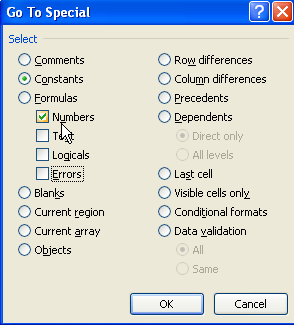
What you can do is have Excel select all the non-formula numbers in the spreadsheet and then you can delete them. This leaves all the formulas and text in place and all that is left are the input cells where you want to enter numbers.

Click on the Find and Select Icon ( or press F5)
Click on Go To Special....
Put a checkmark in Constants
Leave the checkmark in Numbers and uncheck anything else
Click OK

Excel will then select all the cells in the spreadsheet that are just input cells (cells with just numbers - no formulas)


Press Delete

Presto! A clean spreadsheet to start the new year with.

Monday, November 8, 2010

Changing a Cell from Text to Number

If you have imported data from different general ledger programs you might have run into the frustration of  finding that your numbers were imported into Excel as text.  An easy way to turn your text back into a number so that you can perform a mathematical function with it is to right-click on it and select Convert to Number.

Another alternative is to use Text to Columns.

First, select the cell containing the value and then select Text to Columns under the Data tab and at Step 3 select Date and then Finish.
Surprisingly, this will convert text back into a number.

Tuesday, February 23, 2010

Smart Tables in Excel 2007

Excel 2007 offers a wonderful feature that not many people are aware of.  It is called a Smart Table and, in my mind, is basically an advanced version of Excel 2003’s List feature.

Excel considers a list or table to consist of data that is adjacent and does not contain a totally empty column or a totally empty row.
With the Table feature, you can have new data formatted as you enter it, shade alternate rows, instantly sum up the right column and quickly name the table.


The most exciting feature however is that tables are dynamic. As you add or delete data, Excel automatically updates and formats the table. So, what does this really mean for you? It means that if you base a chart, a pivot table or a formula on a table, as data changes in the table, it will automatically update the chart or whatever it is based on. This ensures that you are working with the most current data.


CREATE A TABLE
To create an Excel table


  • Type your data into the worksheet as you normally would
    • Make sure that you include column headings
    • Do not leave any empty rows or columns
  • Click in the data and press CTRL+T.
The Create Table dialog box will pop up so that you can double-check the data range and to ensure there is a checkmark in My Table has headers.


  • Click OK.

The table feature automatically bands and shades every second row and it applies filter arrows to the column headings. A definite timesaver.


When the table is created, a contextual toolbar also appears.
It allows you, among other things, to quickly sum a column, name the table, change formatting styles as well as remove duplicates.
 
 
Adding data into the spreadsheet is not any different than what you have done before – you simply select a cell in the row immediately below the last row and type the value in.

-If you enter a formula in the adjacent column, Excel will automatically copy it down the entire table and format it.
-If you enter data in the adjacent row, Excel will automatically format it so that it matches the table.


To me, the exciting part of the table is that when you add the total row, Excel automatically calculates the values in the rightmost column. You can change that summary operation or add a total to another column easily.


To Create a Total Row
-Make sure your cursor is in the table
-Click on the Design tab under the new Table Tools tab
-Click Total Row


The last row of your total now displays the sum of the right most column.


Thursday, February 18, 2010

Deleting Blanks

Often when you import data, you end up with a lot of BLANK ROWS.

Here is an easy way to get rid of them.


Excel 2003 method:

  •  Select your data
  • Select Edit and Go To
  • Click Special…
  • Click OK
  • Select Edit
  • Select Delete...
  • Select Entire Row
  • Click OK

Excel 2007 method:

  •  Select your data
  •  Select Find and Select on the Home Tab
  •  Select Go To Special..
  •  Select Blanks
  •  Click OK
  •  Select the drop-down arrow under Delete in the Cells group on the Home Tab
  • Select Delete Entire Row
  • Click OK

You could also right-click and select Delete instead of going to the Ribbon if you preferred.

Tuesday, February 9, 2010

Duplicates- Conditional Formatting

Duplicates

In Excel 2007, it is easy to remove duplicates.
  • Select your data
  • Click on the Data tab
  • Click Remove Duplicates
Easy..Peasy.. but sometimes you might actually want to look at what Excel is removing but Excel only tells you how many duplicates were removed - it doesn't show them to you.
 
You can easily identify duplicates and/or unique values using Excel 2007's Conditional Formatting. 
Using the basics of conditional formatting merely formats the duplicate cells. In this case, it formats both the original and any other instances of it.


You select your data, and then select Conditional Formatting on the Home Tab.
Select Highlight Cell Rules and then select Duplicates.
A dialog box comes up for you to select a fill/highlight color for the duplicates.
 An alternative method:
You can also select New Rule and then select Format only unique or duplicate values which is an alternative way to get to the same place.
There is actually a lot of 'stuff" on duplicates as it is a problem everyone faces so perhaps I will continue this conversation tomorrow.

Wednesday, January 27, 2010

Custom Formats

MORE CUSTOM FORMATS


Wow... I am on a roll here........


Another useful format that some people just love is #,####,

This format takes a longer number and essentially truncates it for you so that you do not see the thousands. Excel still reads it as the longer number but you don't see it- even if I do calculations unless you re-format it.

Column A shows the actual number but when copied that number into Column B and then applied the custom format #,####, it redisplayed the shortened number. So, if you don't like dealing with a lot of extraneous zeroes, take a look at this format. Although you can change the display units in a chart itself, this is another way to show simpler units on a chart you are presenting.

  • Right-click on the cell(s)
  • Select Format Cells
  • Under Category, select Custom Formats
  • Enter #,####, in the Type
  • Click OK


The # tells Excel it is a number - don't forget that last comma... that's important as that is telling Excel that there are additional numbers after that but not to display them.

Monday, January 25, 2010

Keeping Leading Zeroes

LEADING ZEROES


Excel drops leading zeroes which can be a problem sometimes when you want to sort invocie numbers, account numbers or zip codes. If you want Excel to keep the leading zeroes then you need to create a custom format.
  • Select the range you want to format

  • Right-click and select Format Cells

  • Select the Number tab

  • Under Category, select Custom

  • Enter the number of zeroes that your longest entry will have
    (In my example, I said 5)

  • Click OK.

If you are just working with zipcodes, an little bit easier method is to select Special under Category and then select Zipcode. (Social security and telephone formats are also there.)

Find the Numbers


I'm not a "huge" football fan but What a Weekend... The Colts WON! And then of course I had to watch Minnesota and the Saints. Imagine... getting to the superbowl for the first time ever based on a field goal!

Okay... back to work. I wanted to share a tip that one of my customers emailed me. I thought you might find it useful. I call it FIND THE NUMBERS.

If you have a spreadsheet with numbers and formulas and you need to update certain "input" numbers each month and
1) you want to make sure that they are all updated
and
2) you don't want to waste time clicking on a cell only to discover it is a formula or worse yet- overwrite it in error
then this tip is for you.
  • Open the spreadsheet
  • Go to Edit >Goto Special if you have Excel 2003 or go to Find & Select >Go to Special if you have Excel 2007
  • In the dialog box, put a checkmark in constants and one in numbers

  • Click OK - Excel then selects just the cells that contain numbers - the Input cells you need to change
  • Click the fill button (paint can) and apply a color or change their font color.
  • As you update and change the number, remove the color formatting you applied.
By the end of the month, all the colors should be gone and you can be confident that your spreadsheet is up to date.


Nice tip Chris. Thanks.

Additional Comment Added : 1/26/10
If you have Excel 2007, you can do this even a little bit faster. Click on Find and Select and click on Constants. It will select all the constants. Apply a color such as light blue or green and you are done.


If you have a tip to share, drop me a line at patricia@cpaselfstudy.com

Monday, August 24, 2009

Alternate Shading with Conditional Formatting

Hey- I hope everyone enjoyed the weekend.

I sure did - started the weekend out at the Naked Chopstix which has the best sushi ever. If you ever make it there, make sure to try the Maui roll! Ended the weekend at the Indiana State Fair eating kettlecorn and walking and walking. Along with the typical fair stuff, we saw a dog agility show, a car show and finished up with a demolition derby that my daughter loved. My favorite part was the car show where I saw my dream car - a 1958 Corvette - a beauty.

Anyway, let's talk about conditional formatting and applying rules. As I mentioned in my last post there is a lot you can do with conditional formatting and a lot of it is pretty easy to figure out but I thought it would be worthwhile to chat about using formulas and rules. Below are the steps you can use to apply a rule to data. In my example here I am using the MOD function and telling Excel to shade every second row of my P&L so that it is easier to read. I am specifying 2 in the MOD function so that every second row is shaded and I am specifying green as that is the traditional accounting color but obviously you can select any color you want - just make sure that it is light enough that that the data can be seen through it.


1. Select your data


2. Click Conditional Formatting on the Home Ribbon.
3. Select New Rule.
4. Click on Use a Formula to determine which cells to format.
5. In the rule description, type =MOD(row(),2)=0.
6. Click Format
7. Select a light green fill.
8. Click OK.
9. Click OK.


And voila.. it should look something like my example below:


Friday, August 21, 2009

Conditional Formatting - Overview

Oh my goodness.. Friday hurray!
I need to buy a birthday card for my Dad plus it is Friday and a very nice day so I need to get out and enjoy it however I have promised myself that I would try to write something every day. Let me make this short but sweet and talk about Conditional Formatting.

Excel 2007 has done a lot with conditional formatting. The feature was really beefed up in this newest version and with more people putting information online and having color printers, color formatting is taking off. It is a great way to visualize your data and can often help you pinpoint items of interest.

The great thing about the conditional formatting is that you can apply it to a cell or range of cells and nothing happens until the value or values specified change and meet the applied criteria.

For example, you can select a budget variance column and tell Excel to change any budget value to red if the variance is less than zero. The formatting only changes to red if a number in that column becomes zero or less. If later the variance returns to a positive, the red formatting disappears.

  • Here are just some of the things you can do with it.
  • You can format only cells that contain text, numbers or date values.
  • You can format only top or bottom ranked values.
  • You can format duplicate values.
  • You can use formulas to determine which cells to format!
Take a look at it at conditional formatting. Go to the Home Ribbon, go to the Styles tab and click on Conditional Formatting and see all the choices.

Next week when I have more time, I will overview a couple of things that you can do with Conditional formatting. The coolest thing I use it for is to have Excel shade alternate rows. I'll show you how to do that next week so check back. If you use conditional formatting for something interesting please let me know - I would love to hear about it.
Have a great weekend.

Ms. Excel- Resident Excel Geek