Excel's Random Number function can be very useful if you are conducting an audit and want to select a sample.
RandBetween returns a random number between the numbers you specify. A new random number is generated every time the worksheet is calculated.
The syntax is: =Randbetween (bottom, top)
For example =RANDBETWEEN (1,10) will randomly generate a value between 1 and 10. If you copy it down a column, a number will be randomly generated for each cell.
The good news is that the function is readily available in Excel 2007 however if you are using Excel 2003 than you will need to run the Setup program to install the Analysis ToolPak. After you install the Analysis ToolPak, you must enable it by using the Add-Ins command on the Tools menu.
If you need to make the numbers static after they have been generated, use Copy>Paste Special Values.
Tuesday, June 8, 2010
Monday, June 7, 2010
Outlining - A Feature Designed for the Accountant
Last week, I attended a great seminar put on by Jon Peltier and Alex Kerin on Charts and Dashboards. I will be sharing some of that information with your shortly. But in the meantime, I thought you might be interested in the Outline Feature. A useful feature that is often overlooked.
The Outline feature was designed with the CPA in mind. The Outline feature allows you to gain a quick overall view of a complex worksheet such as a P&L or a balance sheet. This feature allows specified row and /or columns to be expanded or collapsed which enables the user to work with details or summary information on an as needed basis. You can get as detailed or as high level as you want.
Excel allows you to create an automatic outline where the program determines what should be grouped through the Auto Outline feature or the user can manually group rows and columns. If you are one of those people who create empty rows within your data so that it looks nice then the Auto Outline feature will not work for you. And yes, the Auto Outline feature looks at the formulas in your worksheet and that is how it determines how to group so if you don't have any formulas in the worksheet then the Grouping feature will not work for you.
How to use the Outline feature
1. Make sure that your mouse is inside the data range
2. Select the Data tab
3. Click Group
4. Click Auto Outline
Notice the horizontal line above the column headings and the vertical lines with minus symbols to the left of the row numbers.
5. Click on minus above Column G and notice that the week detail is hidden. What you are left with is just the Total Month.
Click on the Level 1 button to hide all the detail rows or use the minus at rows 7 and 12 to manually hide the detail rows.
If you click on the + beside Row 7 or row 12 and see that the hidden information is now displayed
To expand or collapse specific columns or rows, click on the outline buttons. Bars connected to box containing a minus and a plus identify groupings of data. The minus outline button collapses rows or columns and the plus sign expands the outline. Individual rows or columns at the lowest level of a grouping are identified by black dots. The building block buttons allow the user to select the levels of outlined desired. Levels can range between 1 and 8 depending on the complexity of the worksheet.
Manual Outline
Excel’s Auto Outline does a great job however at times it may not work the way you wish particularly if you have a lot of blank rows. In that case, Excel allows you to manually select columns or rows and outline them yourself.
To manually outline data:
1. Select a group of rows or columns that you want to group
2. Select the Data tab
3. Click Group
4. Select if you want to group by columns or rows
5. Click OK
The Outline feature was designed with the CPA in mind. The Outline feature allows you to gain a quick overall view of a complex worksheet such as a P&L or a balance sheet. This feature allows specified row and /or columns to be expanded or collapsed which enables the user to work with details or summary information on an as needed basis. You can get as detailed or as high level as you want.
Excel allows you to create an automatic outline where the program determines what should be grouped through the Auto Outline feature or the user can manually group rows and columns. If you are one of those people who create empty rows within your data so that it looks nice then the Auto Outline feature will not work for you. And yes, the Auto Outline feature looks at the formulas in your worksheet and that is how it determines how to group so if you don't have any formulas in the worksheet then the Grouping feature will not work for you.
How to use the Outline feature
1. Make sure that your mouse is inside the data range
2. Select the Data tab
3. Click Group
4. Click Auto Outline
Notice the horizontal line above the column headings and the vertical lines with minus symbols to the left of the row numbers.
5. Click on minus above Column G and notice that the week detail is hidden. What you are left with is just the Total Month.
Click on the Level 1 button to hide all the detail rows or use the minus at rows 7 and 12 to manually hide the detail rows.
If you click on the + beside Row 7 or row 12 and see that the hidden information is now displayed
To expand or collapse specific columns or rows, click on the outline buttons. Bars connected to box containing a minus and a plus identify groupings of data. The minus outline button collapses rows or columns and the plus sign expands the outline. Individual rows or columns at the lowest level of a grouping are identified by black dots. The building block buttons allow the user to select the levels of outlined desired. Levels can range between 1 and 8 depending on the complexity of the worksheet.
Manual Outline
Excel’s Auto Outline does a great job however at times it may not work the way you wish particularly if you have a lot of blank rows. In that case, Excel allows you to manually select columns or rows and outline them yourself.
To manually outline data:
1. Select a group of rows or columns that you want to group
2. Select the Data tab
3. Click Group
4. Select if you want to group by columns or rows
5. Click OK
Tuesday, May 25, 2010
Excel 2010 Overview
I sat in this morning on a webinar that overviewed Excel 2010. Seems like we just started with Excel 2007 doesn't it? The webinar was very informative and I thought some of you might be interested in the high points. I need to thank Chandoo for posting information on the webinar.
Sparklines
- Mini charts - This is an exciting feature for those of you creating dashboards.
Slices
- think of Slices as mini dialog boxes that appear on the screen so that you don't have to keep clicking drop-down menus in your pivot table
PowerPivot Addin that will be useful for people connecting to large databases to pull their data
Solver User Interface
Other features have been enhanced to some degree and these include Conditional Formatting, Tables, Pivot Table Options (easier to do calculations) as well as Filtering and Macro Recording.
To learn more about these features and/or to download Office 2010 Beta (it expires in October 2010), click here. Chandoo's website is previewing in detail a lot of the new features so you may want to take a look there too. Click here to get to his articles on 2010.
I wasn't too excited about Excel 2007 but I have to say I am looking forward to using Excel 2010. I'm hoping they "fixed" some of the 2007 Chart features but I fear not. I mean after all they need something to work on for Excel 2012 or Excel 2013.
Have a good day.
- First, I know everyone will be thrilled to hear that the File Menu is making a comeback! The Office button disappears and is replaced with a File tab. Hurray.
- Microsoft has also enhanced it. For example, now you can "stick" files that you want to always display when opening Excel.
- Second, the ribbon is customizable so that you can add your own tabs and then groups within the tabs.
- Paste Preview will now display the different versions of what will actually paste: values..formulas etc .
- Microsoft is adding in a screenshot feature so that you can take a picture of part of your spreadsheet
Sparklines
- Mini charts - This is an exciting feature for those of you creating dashboards.
Slices
- think of Slices as mini dialog boxes that appear on the screen so that you don't have to keep clicking drop-down menus in your pivot table
PowerPivot Addin that will be useful for people connecting to large databases to pull their data
Solver User Interface
Other features have been enhanced to some degree and these include Conditional Formatting, Tables, Pivot Table Options (easier to do calculations) as well as Filtering and Macro Recording.
To learn more about these features and/or to download Office 2010 Beta (it expires in October 2010), click here. Chandoo's website is previewing in detail a lot of the new features so you may want to take a look there too. Click here to get to his articles on 2010.
I wasn't too excited about Excel 2007 but I have to say I am looking forward to using Excel 2010. I'm hoping they "fixed" some of the 2007 Chart features but I fear not. I mean after all they need something to work on for Excel 2012 or Excel 2013.
Have a good day.
Thursday, May 13, 2010
INDIRECT FUNCTION
The INDIRECT function is cool. When you first look at it, you wonder what the heck you can do with it and then all of a sudden you realize that you have a lot of applications for it.
The INDIRECT function accepts a text string as an argument and then evaluates the text string to determine the relevant cell or range reference. What does that mean?
Let's start with a basic example:
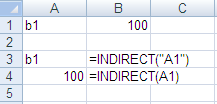
Based on the Excel spreadsheet screenshot:
=Indirect(”A1") Returns the contents of the referenced cell which is B1
=Indirect(A1) Returns the actual contents of the referenced cell. Excel sees that cell A1 contains the cell reference B1 and goes and returns the value in B1 which is 100.
If cell A1 had contained text such as CPA, then CPA would have been returned if quotes had been used.
However, if quotes were not used you would see a #REF! Error since there is no cell reference called CPA.
Okay, so what can you really do with this? Does anyone have an Excel workbook that has a sheet for each month and a summary sheet that displays key calculations for the current month? If not, perhaps you have a file contains sheets by brand or product line and then a summary sheet? If so then you probably spend a lot of time linking or copying and pasting. Using the Indirect function will save you time and allow you to more time to analyze the data.
In the example below, I have a summary sheet that tracks the current month volume in both dollars.
This formula tells Excel go look at cell B4 and to find the cell or range reference found there. In this case Excel looks for JAN which is a sheet name. The ampersand joins the month name with the cell reference of G19. Excel goes to the January sheet and returns the value found in G19 to this summary sheet. If I wanted to see the value of G19 on the February sheet all I have to do is change the name in B4 to Feb to match the name of the actual sheet.
Excel goes over to the Jan sheet and then retrieves the value of 2,556,375 at cell G19 and returns it to the summary sheet.
This example was a bit simple – what happens if every month has a different number of rows or isn’t nicely totaled? If the column had not been totaled I could have used a formula such as this
or if you had no idea how many rows were being populated you could have substituted G:G for G1:G40.
To make it more efficient, use a data validation drop-down list of months in B4.
The INDIRECT function accepts a text string as an argument and then evaluates the text string to determine the relevant cell or range reference. What does that mean?
Let's start with a basic example:

Based on the Excel spreadsheet screenshot:
=Indirect(”A1") Returns the contents of the referenced cell which is B1
=Indirect(A1) Returns the actual contents of the referenced cell. Excel sees that cell A1 contains the cell reference B1 and goes and returns the value in B1 which is 100.
If cell A1 had contained text such as CPA, then CPA would have been returned if quotes had been used.
However, if quotes were not used you would see a #REF! Error since there is no cell reference called CPA.
Okay, so what can you really do with this? Does anyone have an Excel workbook that has a sheet for each month and a summary sheet that displays key calculations for the current month? If not, perhaps you have a file contains sheets by brand or product line and then a summary sheet? If so then you probably spend a lot of time linking or copying and pasting. Using the Indirect function will save you time and allow you to more time to analyze the data.
In the example below, I have a summary sheet that tracks the current month volume in both dollars.
The supporting sheets with the store information are labeled by month - Jan, Feb and March.
Instead of linking or pasting numbers into summary sheet cells B6 each month I can automate the process by using the Indirect function. Notice that cell B4 is the cell showing the month’s key values that I am displaying. In this case January.
The formula I use to retrieve the total shipment dollars shipped in January is
This formula tells Excel go look at cell B4 and to find the cell or range reference found there. In this case Excel looks for JAN which is a sheet name. The ampersand joins the month name with the cell reference of G19. Excel goes to the January sheet and returns the value found in G19 to this summary sheet. If I wanted to see the value of G19 on the February sheet all I have to do is change the name in B4 to Feb to match the name of the actual sheet.
Excel goes over to the Jan sheet and then retrieves the value of 2,556,375 at cell G19 and returns it to the summary sheet.
This example was a bit simple – what happens if every month has a different number of rows or isn’t nicely totaled? If the column had not been totaled I could have used a formula such as this
or if you had no idea how many rows were being populated you could have substituted G:G for G1:G40.
To make it more efficient, use a data validation drop-down list of months in B4.
Monday, May 10, 2010
A new use for F9
I hope you all had a great weekend. My Mother's Day was excellent- in case you were wondering. Too cold to play golf so my daughter and I shopped. Fun either way.
Most people know that the F9 key allows you to recalculate your spreadsheet and can be quite useful if you have turned off automatic recalculation due to the size and/or complexity of your worksheets. If you are not familiar with it, F9 recalculates the entire file whereas Shift +F9 recalculates the current sheet.
However, this weekend I learned a new use for it from a fellow Linked-In member that I thought you might be interested in it.
If you highlight a formula or function in the formula bar and press F9, Excel will substitute that element within the formula with the result. For example, assume the sum of A1 through A10 is a value of 20. If you created the formula =SUM(A1.A10)+1 and highlighted =SUM(A1.A10) in the formula bar and then pressed F9, Excel would display 20 on the formula bar. Press F9 again, and it will revert to the calculation.
You need to select the formula name =SUM, not just the cell references.
This is a bit quicker than going to the Formula Auditing group on the Data Ribbon and selecting Evaluate Formulas.
Have a great Monday.
Most people know that the F9 key allows you to recalculate your spreadsheet and can be quite useful if you have turned off automatic recalculation due to the size and/or complexity of your worksheets. If you are not familiar with it, F9 recalculates the entire file whereas Shift +F9 recalculates the current sheet.
However, this weekend I learned a new use for it from a fellow Linked-In member that I thought you might be interested in it.
If you highlight a formula or function in the formula bar and press F9, Excel will substitute that element within the formula with the result. For example, assume the sum of A1 through A10 is a value of 20. If you created the formula =SUM(A1.A10)+1 and highlighted =SUM(A1.A10) in the formula bar and then pressed F9, Excel would display 20 on the formula bar. Press F9 again, and it will revert to the calculation.
You need to select the formula name =SUM, not just the cell references.
This is a bit quicker than going to the Formula Auditing group on the Data Ribbon and selecting Evaluate Formulas.
Have a great Monday.
Subscribe to:
Posts (Atom)


